We had the pleasure of working with Education on an exciting Learning Tool called CLAS. Here is some information below to learn more.
Collaborative Learning Annotation System (CLAS) is a video platform tailored for educational use. Its most distinctive feature is allowing multiple users to record comments and annotations on a video in near real-time.
Students and instructors can upload videos, assign videos to other users or groups using a mobile device or a PC. Comments and annotations can be added by students, group members, or instructors to the video at any point.
Other features include finely-customizable access control, forum-style discussion threading, self-recording of videos, full mobile support including for webcam recording, and more.
Watch this video for a step by step tutorial on how to create a UBC WordPress blog via the Connect building block LTI Tool. We use this process to easily manage student access in the blog shell. Students are populated from the SISC in the Connect shell for the term. When they click on the link in the Connect shell to the blog, they are automatically given subscriber role access to the blog.
Disclaimer: The following screencast video uses a Greasemonkey script that allows the user to get the embed code for the video. As such, you will not be able to see the embed code.
After logging into Connect, locate the module called My Media, then click on the My Media link.
SEE SCREENSHOT BELOW
Please watch the following screencast as it shows you how to upload a 720p video to Kaltura:
The screencast shows the resolution options that are available over time. The time it takes for the user to get higher resolution video depends on how big the file is.
For reference, the video that was uploaded in the above screencast video is about 100 megabyte. The following is a list of time the system took to finish processing the video to a specific resolution:
1 minute for 360p
1.5 minutes for 540p
3 minutes for 720p
There is no embed code to specify which resolution the video will be played as default, instead the user will need to pick the resolution themselves using the option located near the bottom right of the video player based on which ever resolution is available.
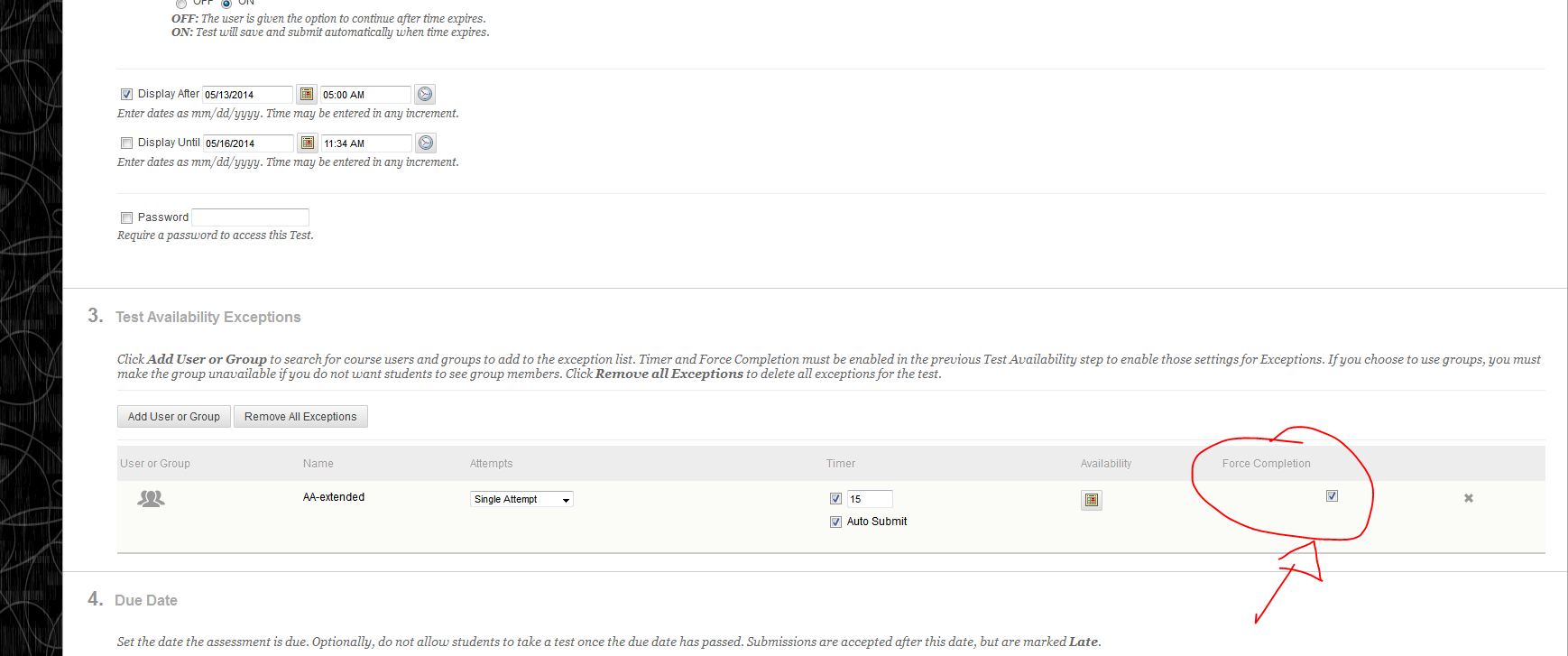
If Test Availability Exceptions is used in a Connect Assessment/Quiz, un-check the force completion in the 3. Test Availability Exceptions first or remove the exception. (See screenshot below)
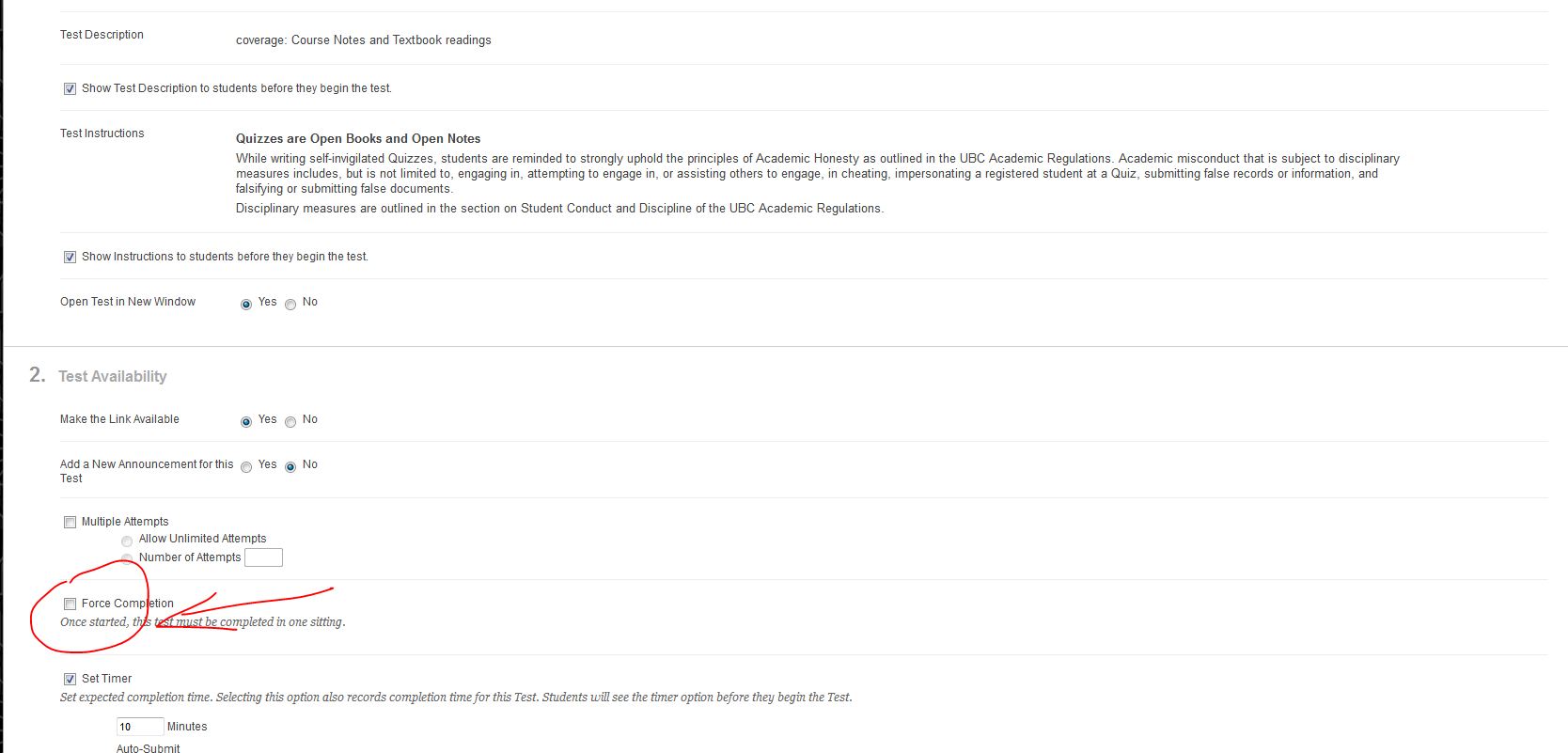
Next, remove the force completion in the 2. Test Availability area. (See screenshot below)
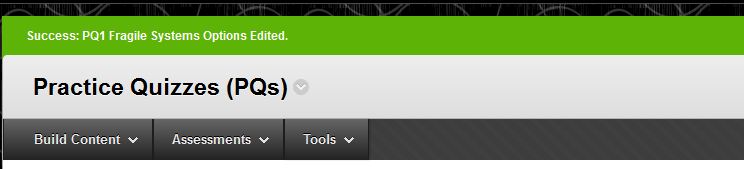
Next, make the desired changes and click submit at the bottom of the page. The changes are now saved successfully. (See screenshot below)
In Connect, under Customization>Tool Availability, check all UBC Blogs features to activate
Can use both the open UBC Blogs in a new window and iframes.
In a Content Area in Connect, click Tools at the top menu, and add UBC Blogs. A link to the Blogs is then created.
XML file must be downloaded during the start, middle and end of term as a back-up.
For any embeds, must use the https:// URL
Apply code to change students from Authors into Subscribers, can be obtained from Scott Macmillian
If students haven’t logged onto the Blogs.ubc.ca site since Mid 2013, students must first log into the Blogs.ubc.ca, before going into Connect and the course blog.
Use assignments and assessments tools in Connect not WordPress.
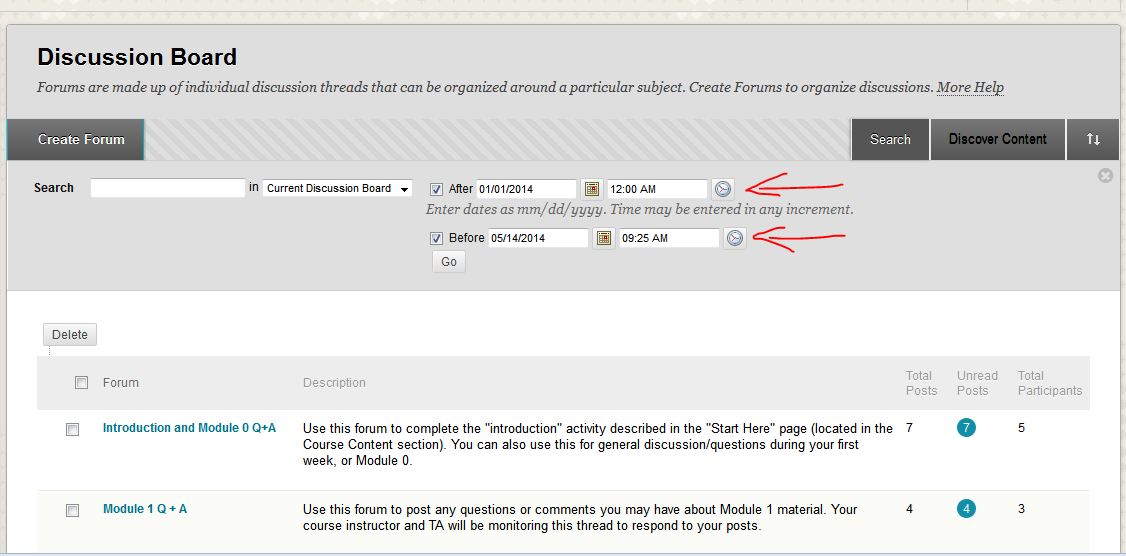
To archive the Discussion Board, go to the Discussion Board and click Search. See screenshot below.
In the search field, enter the after date (i.e. the start of term) and enter the before date (i.e. the end of term). Click the Go button. See screenshot below.
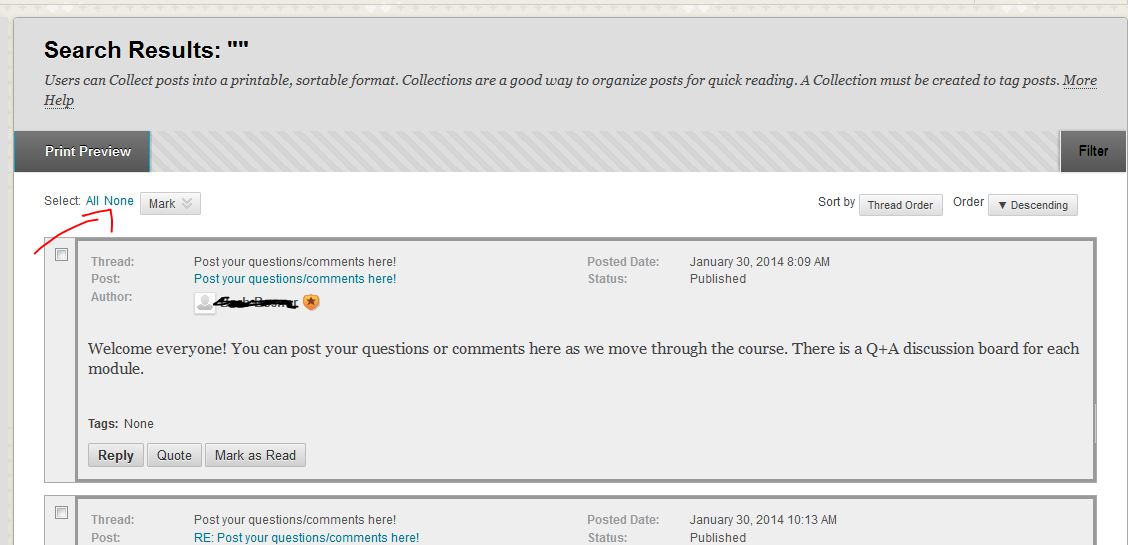
In the search results page, click the All link and when all the check boxes are selected, click the Print Preview button. See screenshot below.
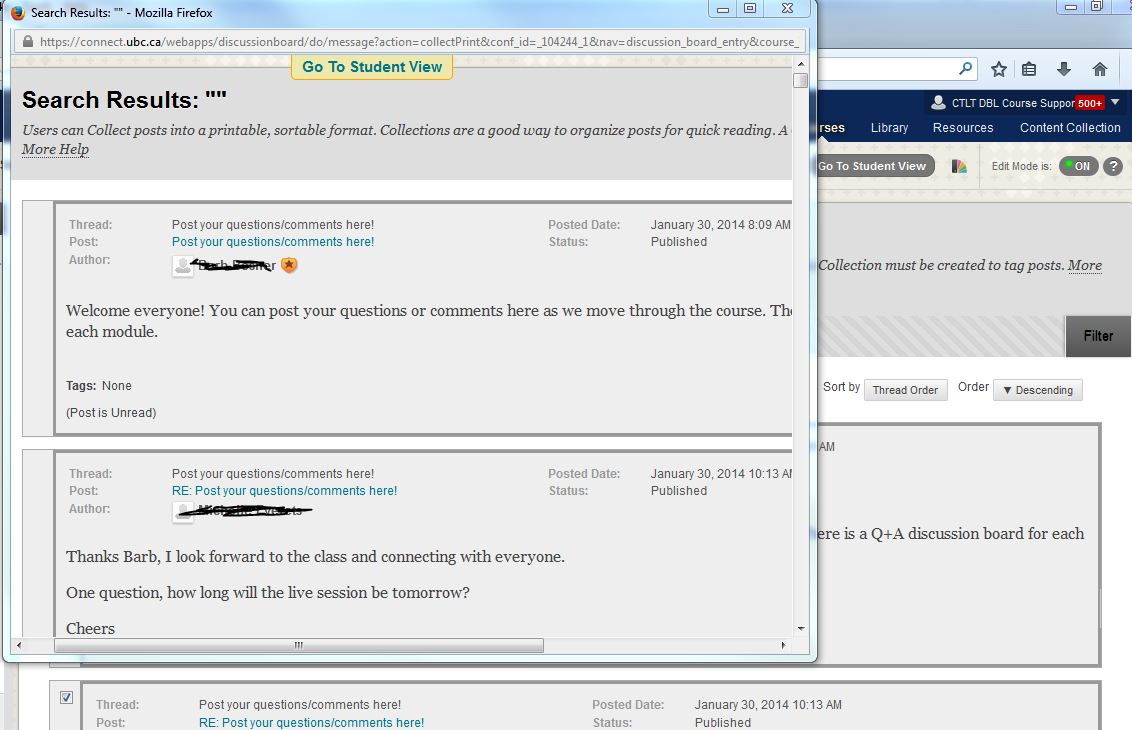
A pop-up window appears, you may print all the threads or copy and paste the threads into a text editor or a Word document. See screenshot below.
Checking/unchecking “Specify random ordering of answers” under Question Settings does not actually turn on/off answer randomization. What this setting does is to turn on/off the ability to specify whether a question can have random answers. To actually specify whether answers will be random or not are controlled within each question.